
We independently review all recommendations. Purchases made through our links may earn us an affiliate commission. Here’s how it works.
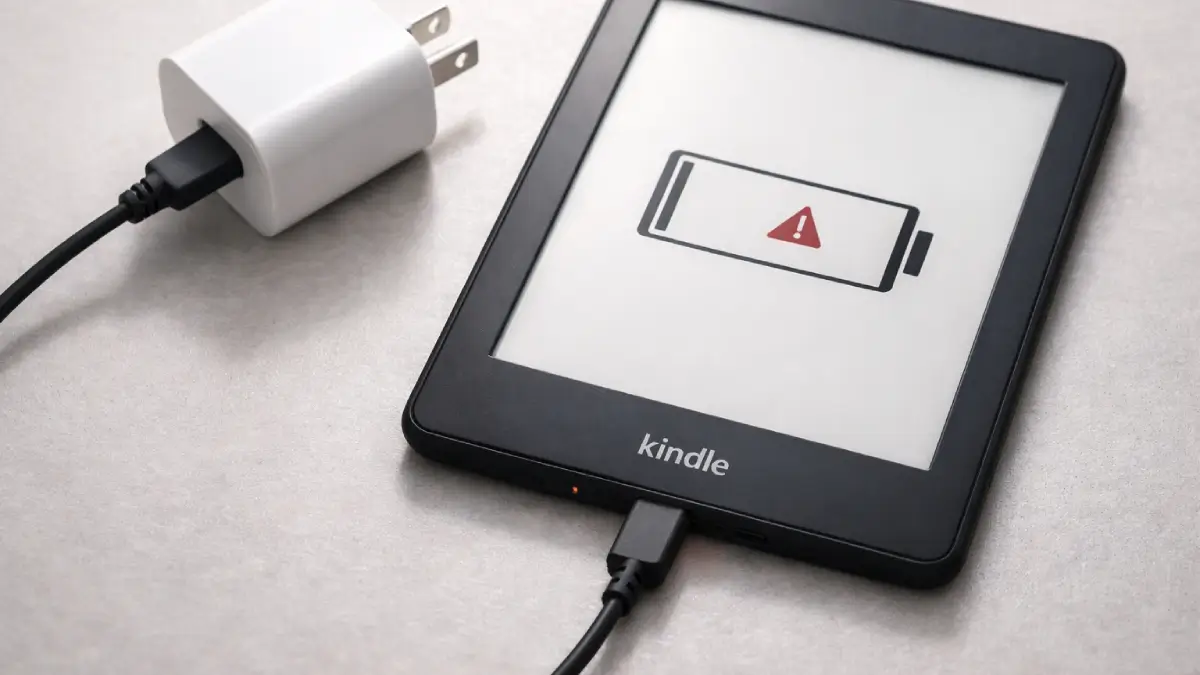
If your Kindle is not charging, the fix is usually simple: a bad cable, a dirty port, or a frozen screen. Work through the steps below in order, most people fix the problem in under 5 minutes without contacting Amazon.
How we verified this: These fixes are tested on current Kindle models and cross-referenced with Amazon’s official support documentation and common user reports in 2025–2026.
Quick Diagnosis: What Is Your Kindle Doing?
Find your situation below and jump straight to the right fix.
| What you see | Most likely cause | Jump to |
|---|---|---|
| Screen is completely black, no light | Deeply drained battery | Fix 1 |
| Orange light blinks then goes off | Cable, charger, or port issue | Fix 2 |
| Plugged in but no orange light at all | Port, cable, or frozen device | Fix 2 + Fix 4 |
| Charges only at a certain angle | Damaged charging port | Fix 5 |
| Orange light is solid but won’t turn on | Dead or failing battery | Fix 6 |
| Was charging fine, stopped after update | Software glitch | Fix 4 |
Fix 1: Let It Charge From Completely Dead
If your Kindle battery is fully drained, it will not show any sign of life for the first 20–30 minutes of charging. This is normal.
What to do:
- Plug your Kindle into a wall outlet using the original Amazon cable and charger (not a computer USB port — wall power is stronger).
- Leave it completely alone for 30 minutes minimum.
- After 30 minutes, check for the orange charging light.
- If the light appears, leave it to charge to 100% before turning it on.
✅ This fixes the problem for most people who haven’t used their Kindle in weeks or months.
Fix 2: Try a Different Cable and Charger
Cables are the most common cause of Kindle charging problems, they fray internally without looking broken on the outside.
What to do:
- Swap the cable first — try a cable you know works on another device.
- If that doesn’t work, try a different wall charger or USB adapter.
- Check what port your Kindle uses:
- Micro-USB: Kindle (8th–10th gen), older Paperwhites
- USB-C: Kindle (11th gen, 2022+), Paperwhite (11th gen), Kindle Scribe
- Make sure you’re using a charger that outputs at least 5W. Cheap or old adapters sometimes don’t push enough power.
⚠️ Avoid: Charging Kindle from a TV USB port or game console — power output is often too low and charging will fail or be extremely slow.
Fix 3: Try a Different Outlet or Power Source
Before assuming the device is broken, rule out the power source.
What to do:
- Try a different wall outlet in your home.
- If you’re using a power strip or surge protector, plug directly into the wall.
- Avoid charging from a laptop or PC USB port — wall charging is significantly faster and more reliable for a deeply drained Kindle.
Fix 4: Restart Your Kindle With a Hard Reset
If the Kindle is frozen or stuck in a crashed state, it won’t register that it’s plugged in. A hard reset clears this instantly.
What to do (works on all Kindle models):
- Keep the Kindle plugged into power.
- Press and hold the power button for 40 seconds.
- Don’t let go — keep holding even if the screen flashes or goes blank.
- Release after 40 seconds.
- Wait 2–3 minutes for the Kindle to restart.
- Check if the orange charging light appears.
💡 Tip: If you see a spinning progress bar or the Kindle logo, it’s working — just let it finish. Don’t press anything.
Fix 5: Inspect and Clean the Charging Port
Pocket lint, dust, and debris are extremely common in Kindle charging ports — especially on devices carried in bags. Even a small amount of lint can block the connection completely.
What to do:
- Shine a flashlight directly into the charging port.
- Look for lint, dust, or any visible debris.
- If you see debris, use a wooden or plastic toothpick — never metal — to gently remove it.
- Alternatively, use a short burst of compressed air.
- Do not use water, cotton swabs, or anything that leaves fibres behind.
- After cleaning, try charging again.
Signs your port may be physically damaged (not just dirty):
- The cable fits loosely or “wobbles” in the port
- Charging only works when you hold the cable at a specific angle
- The port looks bent, pushed in, or corroded
⚠️ If the port is physically damaged, the fix is a repair, not a software reset. Skip to Fix 6.
Fix 6: Contact Amazon Support or Consider an Upgrade
If none of the above fixes work, you’re likely dealing with either a failed battery or physical port damage — both require hardware repair.
What to do first:
- Go to: https://www.amazon.com/devicesupport
- Amazon may offer a free replacement if your Kindle is under 1 year warranty or covered by an extended plan.
- Even out of warranty, Amazon’s support team sometimes offers a discount on a replacement Kindle — it’s worth asking.
If your Kindle is old (4+ years):
Older Kindles with failing batteries often cost more to repair than they’re worth. At that point, upgrading to a newer model is the better value decision.
See our guide to: budget friendly e-readers
What the Orange Light Actually Means
| Orange light behavior | What it means |
|---|---|
| Solid orange | Charging normally |
| No light when plugged in | Not charging — cable, port, or battery issue |
| Blinks once then goes off | Very low battery — leave plugged in for 30+ mins |
| Blinks repeatedly | Charging error — try different cable/charger |
| Solid orange, won’t turn on | Battery may be dead or failing |
Does Your Kindle Need a New Charging Cable?
If your cable is the problem, replacing it is cheap and immediate. A quality USB-C or Micro-USB cable costs under $10 and often fixes the issue permanently.
See our accessories list that are worth buying.
For now, look for:
- USB-C cables: For Kindle 11th gen (2022), Paperwhite 11th gen, Scribe
- Micro-USB cables: For Kindle 8th–10th gen, older Paperwhites
- Avoid ultra-cheap no-brand cables — they’re often the cause of charging problems in the first place
FAQs
Why is my Kindle not charging even when plugged in?
How long does a Kindle take to charge from dead?
Why is the orange light blinking on my Kindle?
Can I charge my Kindle with any USB-C cable?
My Kindle charges only at a certain angle — what does that mean?
How do I know if my Kindle battery needs replacing?
Is it worth repairing an old Kindle that won't charge?
Summary: Kindle Not Charging — Full Fix Checklist
- Leave plugged into wall power for 30+ minutes (if fully dead)
- Try a different cable
- Try a different wall charger/adapter
- Try a different wall outlet (not a power strip)
- Hard reset: hold power button for 40 seconds while plugged in
- Inspect and clean the charging port
- Check warranty status and contact Amazon Support
- Consider upgrading if device is 4+ years old
Still having trouble? Drop your Kindle model and symptoms in the comments, we’ll help you figure it out.