

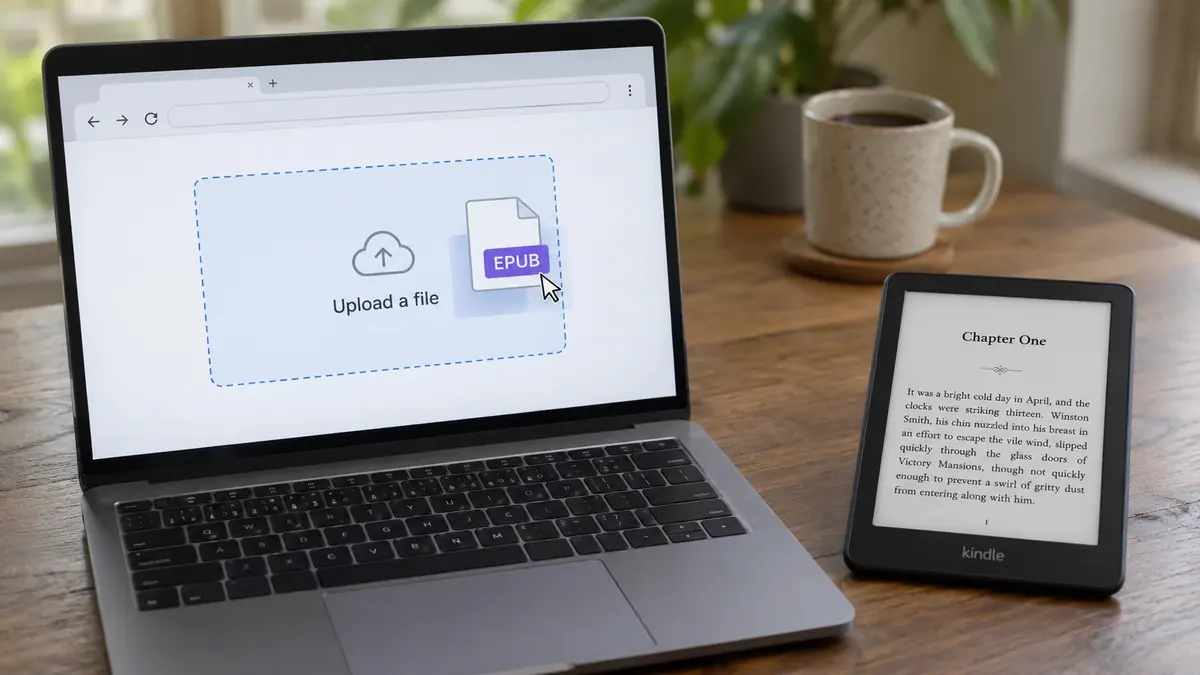
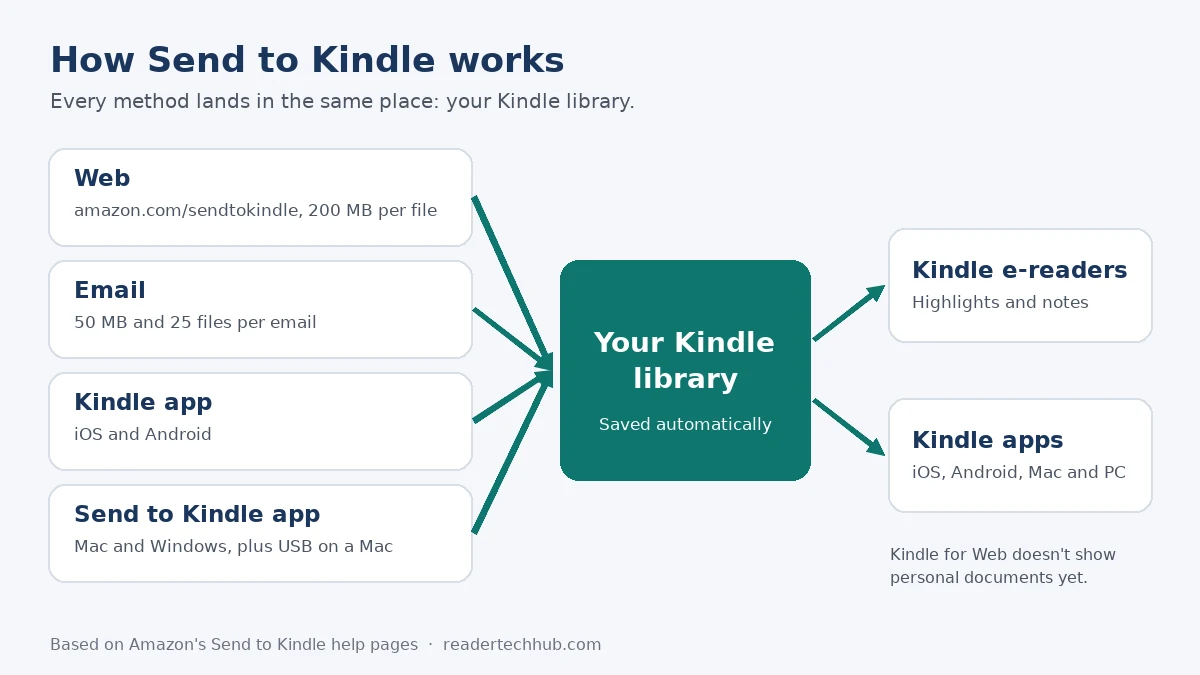
To use Send to Kindle, drag a file onto amazon.com/sendtokindle or email it to your Kindle’s own Send to Kindle address. It then shows up in your Kindle library, on your Kindle and in the Kindle apps.
It works with EPUB, PDF, Word, text and image files, up to 200 MB each on the web or 50 MB per email. Below are the steps for every method, how to get EPUBs onto a Kindle, USB transfers, and what each Send to Kindle error code means.
Where this comes from Every step, limit and error code here comes from Amazon’s own Send to Kindle help pages, which are listed at the end. Menu names can change slightly as Amazon updates its site.
Quick answer
Every way to send files to a Kindle
| Method | Best for | Limit |
|---|---|---|
| Send to Kindle for Web Easiest | Files on any computer | 200 MB per file |
| Sending from any device, or letting someone else send to you | 50 MB, 25 files per email | |
| Kindle app (iOS, Android) | Files already on your phone | Not listed by Amazon |
| Send to Kindle app (Mac, Windows) | Sending from a computer, and USB on a Mac | Not listed by Amazon |
| Chrome extension | Web articles and blog posts | Web pages only |
| USB cable | Copying files without Wi-Fi | Path under 256 characters on Windows |
For most people, the web method is the simplest: no setup, and the file reaches every Kindle and Kindle app on your account.
Step by step
How to use Send to Kindle on the web
- Go to amazon.com/sendtokindle and sign in with the Amazon account your Kindle uses.
- Drag your files onto the page, or select them from your computer. Each file can be up to 200 MB.
- Leave Add to your library turned on, so the document can be downloaded to any Kindle or Kindle app on your account.
- Send the file, then connect your Kindle to Wi-Fi so it downloads.
How to send files to your Kindle by email
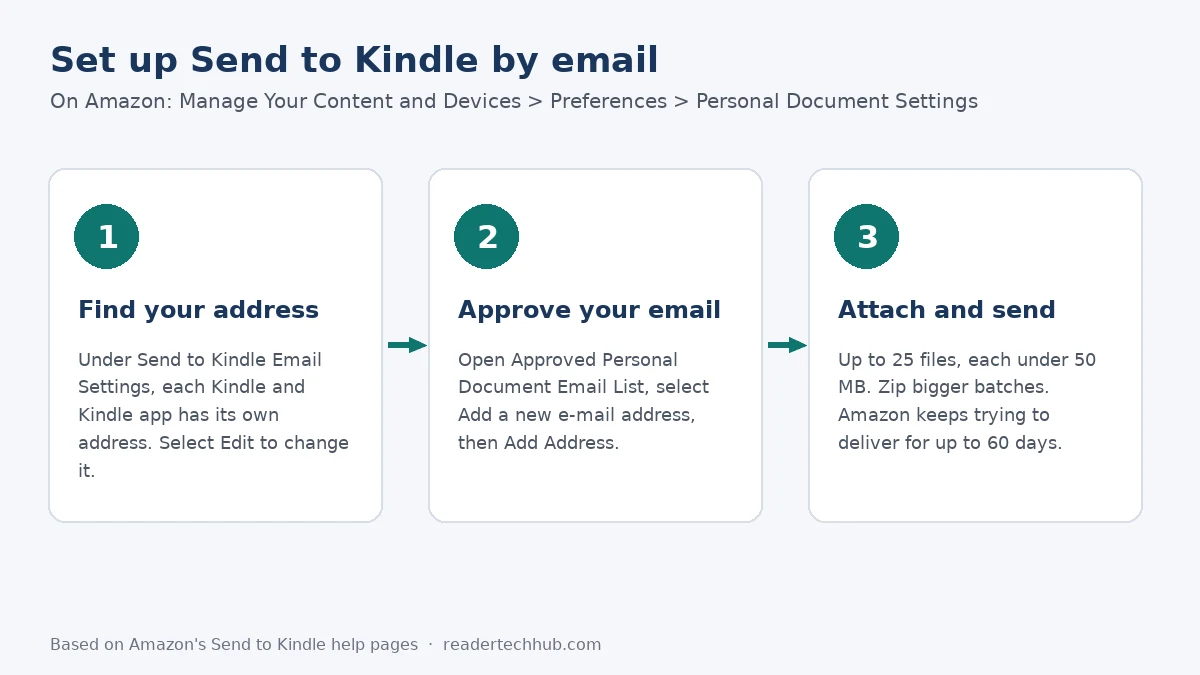
Each Kindle and Kindle app gets its own email address. Anything you email to it, from an address you’ve approved, lands in your library.
1. Find your Send to Kindle email address
Go to Manage Your Content and Devices, open Preferences and scroll down to Personal Document Settings. Under Send to Kindle Email Settings, Amazon lists the address for each compatible device and app. Select Edit next to a device to change it to something easier to remember.
2. Approve the email address you’ll send from
Amazon only delivers documents from addresses on your Approved Personal Document Email List. In the same Personal Document Settings section, select that list and check for your email address. If it’s missing, select Add a new e-mail address, enter it and select Add Address. Only approve addresses you trust.
3. Attach your files and send
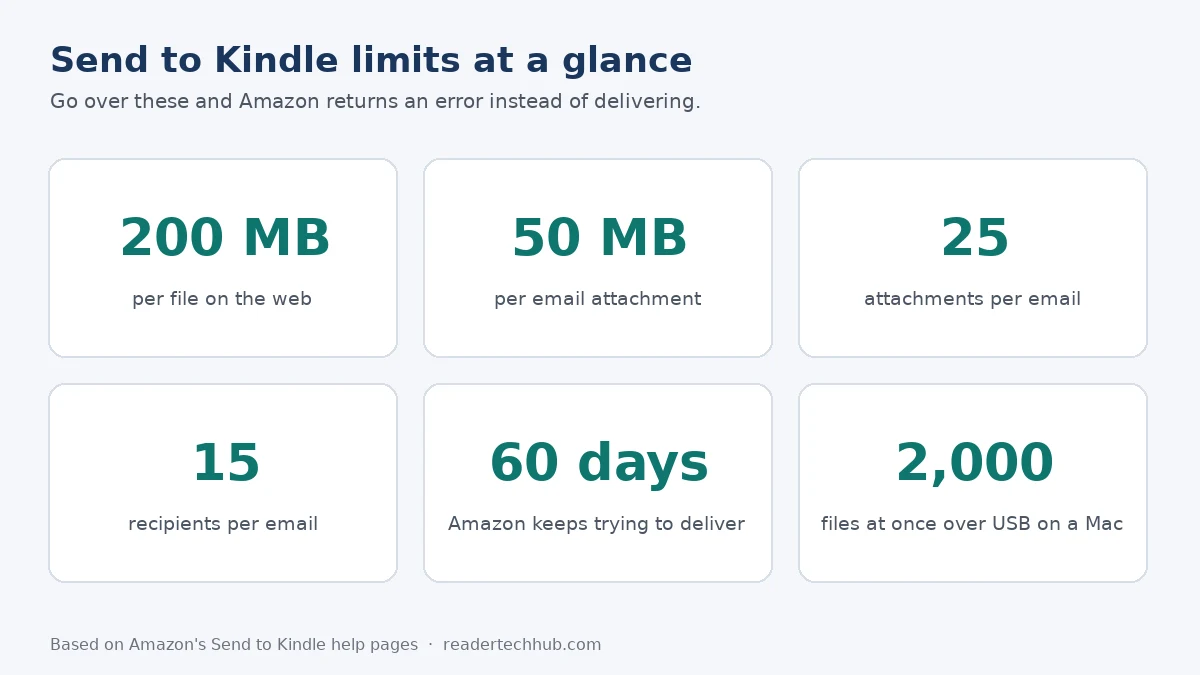
- Attach up to 25 files to one email, with each attachment under 50 MB.
- Send to no more than 15 recipients per email.
- To send more than 50 MB, put the files in a ZIP file. Amazon opens it and converts the files to Kindle format.
- Keep your Kindle online. Amazon keeps trying to deliver for up to 60 days.
EPUB
How to put an EPUB on a Kindle
Send to Kindle accepts EPUB on the web, by email and in Amazon’s apps. Amazon’s USB help page lists EPUB only under Send to Kindle, not as a file to copy over a cable, so Send to Kindle is the way to get an EPUB onto a Kindle.
The file has to be free of password protection and encryption, or Amazon rejects it (error E004). In practice, that means an EPUB still locked to another store won’t go through, while DRM-free EPUBs will. Once sent, an EPUB supports highlights and text notes on a Kindle, like a Kindle book.
Mostly read EPUBs? Kobo e-readers open EPUB files directly, with no conversion. Our Kindle vs Kobo guide compares the two.
USB
How to transfer files to a Kindle over USB
Amazon recommends Send to Kindle over USB, but a cable still works for supported files.
On Windows
- Connect your Kindle with its USB cable. It appears in File Explorer as a drive called Kindle (or Kindle Scribe).
- Copy your files onto it. Keep the full file path under 256 characters, and rename or unzip files on your computer, not on the Kindle.
- Tap Disconnect on the Kindle screen, or unplug it.
On a Mac
- Kindle Scribe and Kindles released in 2024 or later need Amazon’s Send to Kindle app for Mac for USB transfers. It works on macOS 12 or later, on Intel and Apple silicon Macs.
- Connect the Kindle, open the app and choose Tools, then USB File Manager (or the Open USB File Manager button after you sign in).
- Drag files into the Kindle’s Documents folder. You can’t move more than 2,000 files at a time.
Kindle Scribe owners Amazon says writing on the page isn’t supported in PDFs loaded over USB-C. Send PDFs with Send to Kindle if you want to write on them.
Formats
Which file types work?
| File type | Send to Kindle | Highlights and notes |
|---|---|---|
| EPUB | Yes | Yes |
| Yes | Yes | |
| Word (DOC, DOCX) | Yes, Word 97 or newer | Yes |
| TXT, RTF | Yes | Yes |
| HTML, HTM | Yes | Yes |
| JPEG, PNG, GIF, BMP | Yes | Yes |
| MOBI | Not on Amazon’s current list | — |
Highlights and text notes work on every Kindle e-reader. Kindle Scribe adds handwritten sticky notes and writing in the margins.
Library
Where your documents show up
Amazon automatically saves documents you send to your Kindle library, so you can download them on any Kindle or Kindle app on your account. Amazon says Kindle for Web doesn’t support personal documents yet.
To stop documents being stored in your library, go to Manage Your Content and Devices, open Preferences, scroll to Personal Document Settings, select Edit Archive Settings under Personal Document Archiving, untick the box and select Update. If files you copied over USB keep disappearing, see our guide to common Kindle software issues.
Troubleshooting
Send to Kindle errors and how to fix them
If a document doesn’t arrive, Amazon reports an error code. Here’s what each one means, according to Amazon.
| Error | What it means | How to fix it |
|---|---|---|
| E001, E002, E003 | Unsupported, damaged or invalid file | Check the format is supported. Word files must be Word 97 or newer (.doc or .docx). For MOBI, export again from the source. |
| E004 | File is password-protected or encrypted | Remove the encryption in the app that made the file. |
| E005 | Password-protected PDF | Open it in a PDF reader, choose File, Save As, and untick the security settings. |
| E006 | Too many attachments | Send 25 files or fewer per email. |
| E007 | File too large | Keep each attachment under 50 MB, or compress or split it. |
| E008 | Too many recipients | Send to 15 addresses or fewer. |
| E009 | No attachment found | Attach the file and send again. |
| E010, E011 | Warnings for sending too much | Send less often. E011 means Amazon has started a review. |
| E012 | Sending suspended | Stop sending and review Amazon’s Send to Kindle terms. |
| E013, E016 | Delivered, but without features like adjustable text size | Split large tables, and remove audio, video, SVG images and equations, then resend. Keep it under 8,000 pages. |
| E014 | Sender not approved | Add the address to your Approved Personal Document Email List and send again. |
| E015 | Web page couldn’t be extracted | Check the page loads and isn’t behind a login, then resend. |
| E999 | Amazon error or maintenance | Wait 15 to 30 minutes and resend. |
Before resending anything, Amazon suggests checking that the file opens on your computer and isn’t password-protected. For hardware problems, see our guide to a Kindle that isn’t charging.
Don’t have a Kindle yet? Our guide to which Kindle to buy compares every 2026 model, and our best e-readers guide covers Kobo and other readers that open EPUB files directly.
FAQs
What is my Send to Kindle email address?
Can you send an EPUB to a Kindle?
Why didn't my Send to Kindle email arrive?
Can I use Send to Kindle from my phone?
What is the Send to Kindle file size limit?
Can I send MOBI files to a Kindle?
Sources (9)
- Amazon Send to Kindle: Send to Kindle, Learn About Sending Documents to Your Kindle Library, Learn How to Use Your Send to Kindle Email Address, Edit Your Send to Kindle Email Address, Add an Email Address to Receive Documents in Your Kindle Library
- Amazon troubleshooting and files: Troubleshoot Send to Kindle Errors, Connect, Browse, and Transfer Files on E-Reader, Kindle Personal Document File Types That Support Notes, Disable Document Archiving in Your Kindle Library